


PowerPoint
Quiz by Christen Sanders
Feel free to use or edit a copy
includes Teacher and Student dashboards
Measure skillsfrom any curriculum
Measure skills
from any curriculum
Tag the questions with any skills you have. Your dashboard will track each student's mastery of each skill.
With a free account, teachers can
- edit the questions
- save a copy for later
- start a class game
- automatically assign follow-up activities based on students’ scores
- assign as homework
- share a link with colleagues
- print as a bubble sheet
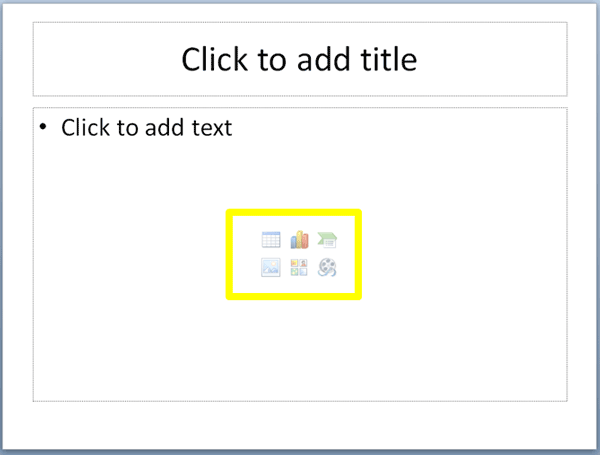
- Q 1/17Score 0What are the items circled in yellow called and what will happen when you click on them?29These are called format holders. They work when the PowerPoint presentation is in Live Preview.These are called placeholders. They will insert an object such as a table or a chart when clicked.These are called content holders. They are hyperlinks to where content such as a table or chart is located.These are called image icons. They are inserted to make a slide look more colorful and professional.


17 questions
Show answers
- Q1What are the items circled in yellow called and what will happen when you click on them?These are called format holders. They work when the PowerPoint presentation is in Live Preview.These are called placeholders. They will insert an object such as a table or a chart when clicked.These are called content holders. They are hyperlinks to where content such as a table or chart is located.These are called image icons. They are inserted to make a slide look more colorful and professional.60s
- Q2Which of the following lists contain items which are not placeholders?Text, Content, Picture, Chart, TableRight-click a slide and select Duplicate Slide from the menu listMedia, Clip Art, Table, Picture, TextText, Picture, Borders, Table, Clip Art60s
- Q3What is the purpose of the green handle circled in yellow?Click this handle to move the image.Click this handle to rotate the image.Click this handle to resize the image by increasing its height.Click this handle to resize the image by increasing its width.60s
- Q4Which of the following is NOT a tab found on the PowerPoint Ribbon?The Insert Tab.Page Layout TabThe Review tab.The View Tab.60s
- Q5What do you think is the purpose of the area circled in yellow above?It is used to add speaker notes to each slide that the presenter will use during the presentation to prompt and guide them.60s
- Q6Under which tab will you find options to preview and play all the slides, including transitions and animations, in a presentation?Under the Slide Show tab click on the From Beginning button in the Start Slide Show group.Under the View tab, click on the From Beginning button in the Start Slide Show group.Under the Home tab click on the Play button to preview all the slides in the presentation.Under the Preview tab, select the View Slideshow option and choose a timed duration for your presentation.60s
- Q7Which view type do you think this is and what is it most useful for?It is called the Outline View and is perfect for viewing all the slides in a presentation.It is called the Slide Master and is perfect for viewing all the slides in a presentation.It is called the Slide Sorter and is perfect for reorganizing slides in a presentation.It is called the Slide View and is perfect for reorganizing slides in a presentation.60s
- Q8In which view type can access the Slides and Outline panels?The Reading View.The Notes Page View.The Slide Sorter View.The Normal View60s
- Q9Louise has opened a slideshow presentation sent to her by a colleague. When she clicks on From Beginning under the Slide Show tab, the slide show starts but does not progress past the first page which only contains a title. Can you help her?She needs to exit the presentation and play it in the Presenter View to view all the slides in the presentation.She needs to exit the presentation and ensure she clicked From Beginning and not From Current Slide.There is only one slide in the presentation, the title slide. Her colleague has clearly made a mistake.She needs to use her mouse to click to transition to the next slide.60s
- Q10How many slides does this presentation contain in total?It is impossible to tell from the screenshot alone how many slides the presentation contains.The presentation contains ten slides.The presentation contains six slides.The presentation contains seven slides60s
- Q11What is this view called and what is it useful for?It is the Slide Organizer View, which is useful for organizing slides into groups and sections.It is the Slide Layout View, which is useful for organizing the layout of slides.It is the Slide Sorter View, which is useful for reorganizing the order slides appear in, in a presentation.60s
- Q12Which slide type or slide layout must you select to achieve the layout represented by the content placeholders?Select the Content with Caption option.Select the Parallel and Heading option.Select the Title and Content option.Select the Two Content option.60s
- Q13How do you delete slides that are no longer required?Open the Slide Sorter view and drag slides that are not being used into a different presentation.Hold down the Ctrl key while selecting slides to delete. Press Delete on your keyboard.Click and drag unwanted slides off of the Slide Pane to remove them.60s
- Q14Which of the following design elements do you think is most problematic on this slide:The number of bullet points (five).The font type used (sans serif).The font color and size.The amount of text the slide contains.60s
- Q15Which of the following statements are incorrect?You can use different fonts in a presentation, as long as they are consistently used and limited to around three fonts.You can use an unlimited number of different fonts and colors, as long as they are on different slides in a presentation.You can use a different font size for headings, subheadings and bullet points on a slide.You can use different colors in a presentation, as long as they are consistently used.60s


