Loading...


Space and shape
Quiz by Thembani Peggy
Customize this quiz to suit your class
Instantly translate to 100+ languages
Tag the questions with any skills you have. Your dashboard will track each student's mastery of each skill.
Give this quiz to my class
how many faces does a cube have?
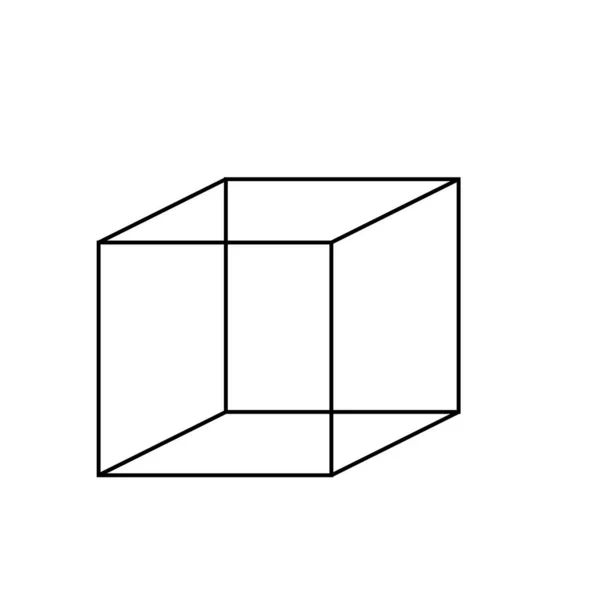
6
4
2
8
how many faces does a cube have?
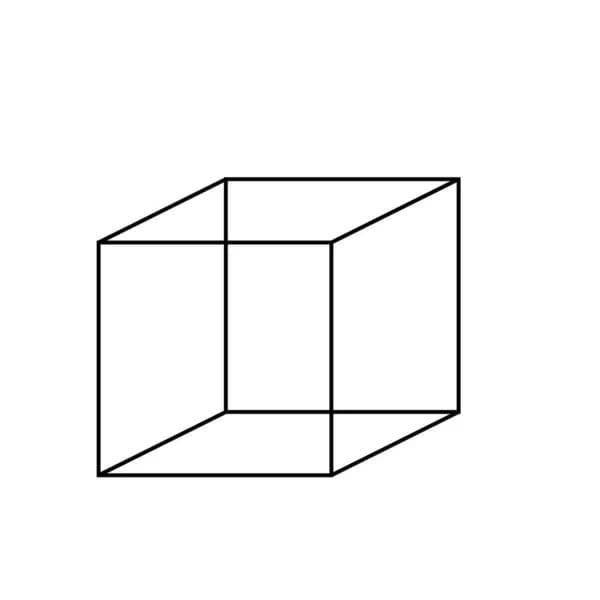
which 3D shape is similar to a circle?
how many squares make a cube

what do we call the shape that looks like the image above
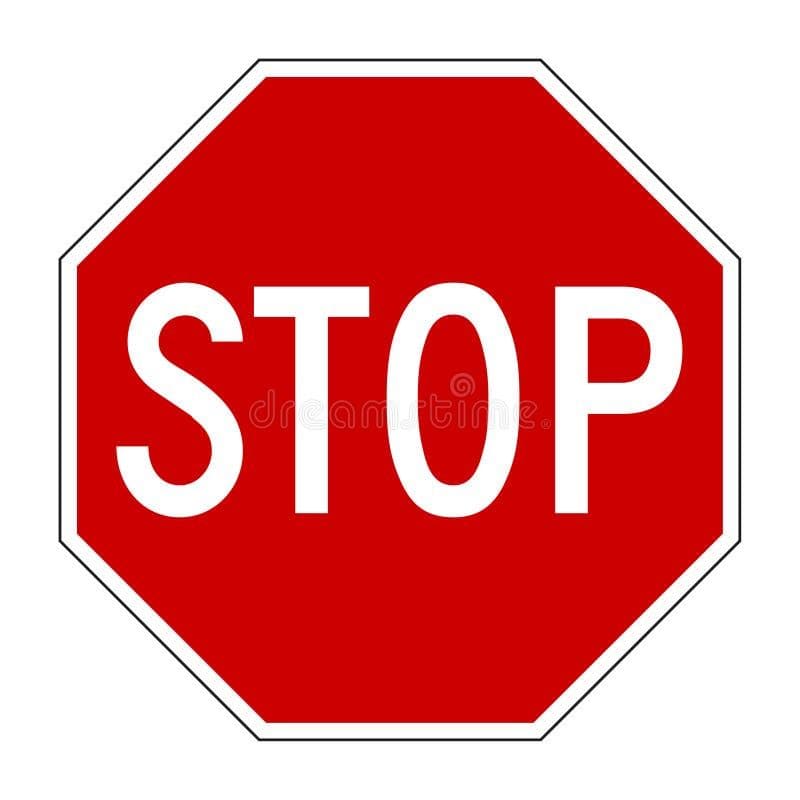
true or false, the image above is a rectangle
 Space and Shape - Grade 5space and shape 2Space and shapes. Section 1: Numbers, Operations, and Relationships (15 marks) 1. Number Concepts (5 marks) 1.1. Decompose the following numbers into tens and ones: (2 marks) a. 34 b. 67 1.2. Count the objects in the pictures below and write the total number: (3 marks) [This section would need images of objects. You can provide images of groups of objects, e.g., 3 groups of 4 apples each and ask the students to count the total number.] 2. Solve Problems (5 marks) 2.1. Solve the following word problem using drawings: (3 marks) Samantha has 5 baskets. Each basket has 8 apples. How many apples does she have in total? Samantha has 5 × 8 = 40 5×8=40 apples. 2.2. Solve the following word problem by building up and breaking down numbers: (2 marks) There are 4 boxes. Each box has 6 chocolates. How many chocolates are there in total? There are 4 × 6 = 24 4×6=24 chocolates in total. 3. Calculations (5 marks) 3.1. Multiply the following numbers using drawings: (3 marks) a. 5 × 4 = 20 b. 4 × 5 = 20 3.2. Use a number line to solve: (2 marks) a. 3 × 5 = 15 b. 2 × 4 = 8 Section 2: Patterns, Functions, and Algebra (10 marks) 4. Number Patterns (10 marks) 4.1. Complete the number sequences: (5 marks) a. 180, 170, 160, 150, 140, 130, 120, 110, 100, 90 b. 150, 152, 154, 156, 158, 160, 162, 164, 166, 168 4.2. Count in twos and fill in the missing numbers: (5 marks) a. 102, 104, 106, 108, 110, 112, 114, 116 Section 3: Space and Shape (Geometry) (10 marks) 5. Position (10 marks) 5.1. Follow the directions to move around the classroom: (5 marks) Draw a path showing how you would move from your desk to the teacher's table by following these steps: Move 3 steps forward. Turn left and move 2 steps. Turn right and move 4 steps. [Students would draw a path based on these directions.] 5.2. Use the language of position to describe the following: (5 marks) a. The pencil is on the book. b. The chair is beside the desk. c. The bag is under the table. d. The ruler is next to the notebook. e. The eraser is inside the pencil case.Model Rockets Liftoff! Three... two... one... liftoff! A model rocket shoots into the sky. The rocket can fly up to 1,500 feet (457 m) high! Watching these small rockets fly can be fun and exciting. Model rockets aren't just for fun, though. They also teach us about science and space. The History of Rockets. People in China invented rockets about eight hundred years ago. They filled tubes with gunpowder and shot them at their enemies. Later, scientists built rockets that could go into space. Starting in the 1950s, people began building model rockets for fun. Parts of a Model Rocket. A model rocket kit comes with all the parts a rocket needs. A model rocket's body is a long tube made of cardboard or plastic. The nose cone fits into the top of the tube. The size and shape of a rocket's body and nose cone can change how it flies. Fins help the rocket fly straight. The engine burns fuel to push the rocket into the air. A parachute helps the rocket fall safely back to Earth. People like to make their rockets look great. Many people paint their rockets with different colors and designs. Every rocket is one of a kind! At the Launchpad. The only place to launch a rocket is in an open space. The launch area needs to be far away from people and buildings. A large field or a playground is a good spot. First, set up the launchpad. Place the rocket over the guide wire on the pad. The guide wire keeps the rocket pointing straight up. A girl connects the wire that will allow the controller to start the rocket engine. when it lifts off. Connect the launch controller to the rocket engine. Then step back and press the button on the controller to start the engine. Whoosh! The rocket flies up and away. Clubs and Competitions. People who fly model rockets often join model rocket clubs. Schools or hobby groups can have information about model rocket clubs. A science center or museum might have a model rocket club, too. Many people enter model rocket competitions. They set off rockets and see which one flies the highest and the fastest. Model rocket competitions are held all over the world. In the United States, students between twelve and eighteen can enter the Team America Rocketry Challenge. Every spring, one hundred teams compete to become the best in the country. The winners go on to compete against other teams from around the world. Model rockets are a fun way to learn about science. Who knows how high a model rocket can take your imagination?Shape and Space RevisionWhat do an ancient Greek philosopher and a 19th century Quaker have in common with Nobel Prize-winning scientists? Although they are separated over 2,400 years of history, each of them contributed to answering the eternal question: what is stuff made of? It was around 440 BCE that Democritus first proposed that everything in the world was made up of tiny particles surrounded by empty space. And he even speculated that they vary in size and shape depending on the substance they compose. He called these particles "atomos," Greek for indivisible. His ideas were opposed by the more popular philosophers of his day. Aristotle, for instance, disagreed completely, stating instead that matter was made of four elements: earth, wind, water and fire, and most later scientists followed suit. Atoms would remain all but forgotten until 1808, when a Quaker teacher named John Dalton sought to challenge Aristotelian theory. Whereas Democritus's atomism had been purely theoretical, Dalton showed that common substances always broke down into the same elements in the same proportions. He concluded that the various compounds were combinations of atoms of different elements, each of a particular size and mass that could neither be created nor destroyed. Though he received many honors for his work, as a Quaker, Dalton lived modestly until the end of his days. Atomic theory was now accepted by the scientific community, but the next major advancement would not come until nearly a century later with the physicist J.J. Thompson's 1897 discovery of the electron. In what we might call the chocolate chip cookie model of the atom, he showed atoms as uniformly packed spheres of positive matter filled with negatively charged electrons. Thompson won a Nobel Prize in 1906 for his electron discovery, but his model of the atom didn't stick around long. This was because he happened to have some pretty smart students, including a certain Ernest Rutherford, who would become known as the father of the nuclear age. While studying the effects of X-rays on gases, Rutherford decided to investigate atoms more closely by shooting small, positively charged alpha particles at a sheet of gold foil. Under Thompson's model, the atom's thinly dispersed positive charge would not be enough to deflect the particles in any one place. The effect would have been like a bunch of tennis balls punching through a thin paper screen. But while most of the particles did pass through, some bounced right back, suggesting that the foil was more like a thick net with a very large mesh. Rutherford concluded that atoms consisted largely of empty space with just a few electrons, while most of the mass was concentrated in the center, which he termed the nucleus. The alpha particles passed through the gaps but bounced back from the dense, positively charged nucleus. But the atomic theory wasn't complete just yet. In 1913, another of Thompson's students by the name of Niels Bohr expanded on Rutherford's nuclear model. Drawing on earlier work by Max Planck and Albert Einstein he stipulated that electrons orbit the nucleus at fixed energies and distances, able to jump from one level to another, but not to exist in the space between. Bohr's planetary model took center stage, but soon, it too encountered some complications. Experiments had shown that rather than simply being discrete particles, electrons simultaneously behaved like waves, not being confined to a particular point in space. And in formulating his famous uncertainty principle, Werner Heisenberg showed it was impossible to determine both the exact position and speed of electrons as they moved around an atom. The idea that electrons cannot be pinpointed but exist within a range of possible locations gave rise to the current quantum model of the atom, a fascinating theory with a whole new set of complexities whose implications have yet to be fully grasped. Even though our understanding of atoms keeps changing, the basic fact of atoms remains, so let's celebrate the triumph of atomic theory with some fireworks. As electrons circling an atom shift between energy levels, they absorb or release energy in the form of specific wavelengths of light, resulting in all the marvelous colors we see. And we can imagine Democritus watching from somewhere, satisfied that over two millennia later, he turned out to have been right all along.Align Panel: This panel allows you to align one or more objects the the artboard or other objects. Alignment: Formatting the appearance of text with the margins of the text box. Anchor Point Tool: Allows you to add or remove handles to create a curve on an anchor point. Anchor Points: A point on a path indicates a change of direction. Appearance Panel: This panel shows you the fill, strokes, graphic styles, and effects that have been applied to an object, group or layer and are able to modify theses from this panel directly. Area Type Tool: This occurs when using the type tool and you click and drag a text box, the text will automatically wrap inside the box. Blend Tool: This tool allows you to combine shapes/colors between two or more objects to create a new object between the original, blending the colors and shapes by inserting the middle steps to get from one object to the next. Blob Brush Tool: This tool is used to create free-form objects that can have a more hand-drawn feel. Brushes: Allows you to set the appearance/style of a path, can be applied to existing paths or used to create new paths. Clipping Masks: This command allows you to mask objects to a shape so that only areas that lie within the shape are visible, the mask and objects that are masked are called a clipping set. Closed Path: A path that has the same beginning and ending point. It forms a complete shape that can be filled with color or text. Create Outlines: This command converts text to closed paths and can be found in the Type Menu. Curvature Pen Tool: Allows you to simply create paths with curved anchor points. Curves: Can be applied to an anchor point using handles to create an arched line. Direct Select Tool: Allows you to select individual points of any path. Effects: These can be added to objects to create quick dynamic characteristics. Eraser Tool: This tool allows you to remove anchor points and cut through paths. Expand Objects: This allows you to divide a single object into multiple objects that make up its appearance. Eyedropper Tool: This tool allows you to sample the color or text from an existing part of the artwork. Global Swatches: This is a color swatches that will be automatically updated throughout your artwork when you change them, indicated with a white triangle in the corner of the swatch. Graphic Styles: A set of reusable appearance attributes that allow you to quickly change the look of an object. Grouping: This command allows you to link objects together so that they can be moved, scaled, rotator, or copy. Groups can be nested inside other groups. Hierarchy: To create visual order in design, controlling what the viewer looks at in order using size, color, contrast, etc… Image Trace: This command allows you to convert a raster image into a vector artwork. Isolation Mode: This mode allows you to adjust single objects/groups inside a group without ungrouping the group. Join Tool: This tool joins paths and anchor points together quickly. Kerning: This is the adjustment of the space between two individual letters. Knife Tool: This tool allows you to split an object into 2 pieces along a freehand path you draw. Leading: This is the adjustment of the space between lines of text. Live Corners: This widget appears when using the Direct Select tool and a corner is selected, when used this will create a rounded corner. Live Paint: This command allows you to quickly apply colors to objects in a complex design. Open Path: A path that does not end, not connected back to the original anchor point. Overflow Text: This occurs when the text box is too small to house all the text and is indicated by a small red plus sign in the bottom right corner of the text box. Paintbrush Tool: This tool is used to create free-form paths that can have a more hand-drawn feel. Paragraph Spacing: The space that occurs between lines of text. Pathfinder Panel: This panel allows you to create complex shapes by selecting 2 or more objects and using the buttons in the panel to cut, combine, or divide the objects. Paths: These are created when 2 or more points are connected, these are created using the pen tool. Pen Tool: It allows you to create and edit anchor points and paths. Pencil Tool: This tool is used to create free-form shapes or lines, the accuracy of the lines can be adjusted. Perspective Tool: This tool allows you to place elements on a perspective grid to adjust objects on a different perspective, automatically snapping to the perspective grid. Placeholder Text: Text that is placed in a text box that "holds a place" in a design to allow for creating a layout or adjust the text design. Point Type Tool: This occurs when when using the type tool and you click once, the text will continue without wrapping. Readability: The characteristics of fonts and styles that make test easy to identify and read. Scale, Shear, Distort Objects: This set of commands allows you to adjust the size and perspective of objects. Scissors Tool: This tool allows you to split a path into 2 pieces. Selection Tool: Allows you to select paths, objects or groups by click or dragging over them. Shape Builder Tool: This interactive tool allows you to create complex shapes by merging and erasing simpler objects. Shapes Tools: A group of tools to create basic shapes without using the pen tool (rectangle, ellipse, polygon, star, etc…). Smooth Tool: This tool will smooth a complex path and reduce the number of anchor points. Swatches: This is a saved color that can be applied in a design via the swatches panel and can be grouped, these can include gradients and patterns. Text Wrapping: This is when the text in a text box automatically wraps to the next line when it reaches the edge of the box. Threading Text: This is the ability to create 2 or more text boxes that are linked, when text is added/adjusted in one box, it will affect the other(s). Touch Type Tool: This tool allows you to adjust individual letter in a previously created text box. Tracking: This is the adjustment of the overall spacing between letters. Transform Objects: This allows you to change the size of objects. Type on a Path Tool: This tool allows you to add text along any previously created path. Type Tool: This tool allows you to create text in a design. View Modes: Ability to view projects and adjust the display on the screen. Modes include Outlines, Presentation, & Full Screen.