Loading...


Edit 2: Commas in a Series
Quiz by Cecilia A Perez
Customize this quiz to suit your class
Instantly translate to 100+ languages
Tag the questions with any skills you have. Your dashboard will track each student's mastery of each skill.
Give this quiz to my class
Which edit is correct?
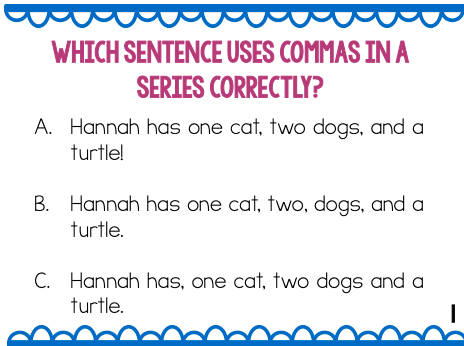
B
A
C
Which edit is correct?
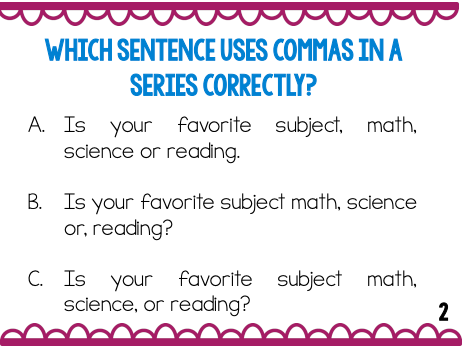
A
C
B
Which edit is correct?
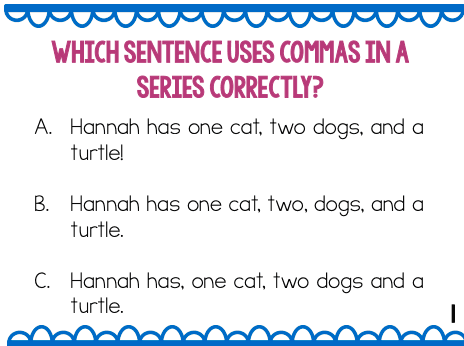
Which edit is correct?

Which edit is correct?

Which edit is correct?

Which edit is correct?

Which edit is correct?

Which edit is correct?

Which edit is correct?

Which edit is correct?

Which edit is correct?
 8- Edit 27-Edit 2rico's treasure(2) edit reviseRevise and Edit Review - Major Grade #2Select all the numbers that can be used as a common denominator to rewrite the fractions __ 2 6 and __ 1 2 . A 3 D 12 B 6 E 16 C 8 2 Aaron ran __ 5 8 mile to his friend’s house. Then he ran another __ 1 4 mile to the park. 1 1 8 1 8 1 8 1 8 1 8 1 8 1 8 1 8 1 8 1 8 1 8 1 8 1 4 Which equation shows how many miles Aaron ran? A __ 5 8 – __ 1 4 = __ 2 8 C __ 5 8 + __ 1 4 = __ 7 8 B __ 5 8 – __ 1 4 = __ 3 8 D __ 5 8 + __ 1 4 = __ 8 8 3 Select all the expressions that can be used to find the sum of __ 6 8 and ___9 12. A ___ 36 48 + ___ 36 48 D ___ 18 20 + ___ 17 20 B ___ 24 36 + ___ 27 36 E ___ 18 24 + ___ 18 24 C ___ 14 16 + ___ 13 16 4 Write a pair of equivalent fractions for __ 3 4 and __ 2 5 using a common denominator of 20. __ 3 4 = __ 2 5 = 5 Katie spent __ 4 5 hour painting and __ 1 2 hour drawing. ? 1 1 2 1 5 1 5 1 5 1 5 How much more time in hours did she spend painting than drawing? 6 Dave is planting a garden. He plants cucumbers in ___2 12 of his garden and tomatoes in __ 2 3 of his garden. What fraction of his garden does Dave plant with cucumbers and tomatoes? 7 Of the students in Maria’s class, __ 2 5 have dogs and __ 1 3 have cats. No students have both a dog and a cat. What fraction represents how many more students in Maria’s class have dogs? 52 © Houghton Mifflin Harcourt Publishing Company Module 6 • Form A Name Module Test DO NOT EDIT--Changes must be made through "File info" CorrectionKey=NL-C 9 Mr. Gonzales used __ 3 4 quart of broth and __ 1 2 quart of milk to make soup. How many quarts of liquid did he use? Part A Complete the fraction model to represent the problem. 1 1 2 1 4 1 4 1 4 Part B Write an equation to show how many quarts of liquid Mr. Gonzales used to make soup. 10 A bowl of cereal contains __ 2 3 cup of oats and __ 2 8 cup of raisins. Write a numerical expression using equivalent fractions with a common denominator of 24 to model how many more cups of oats than raisins there are in the bowl. 11 Jessica read __ 1 6 of her book on Thursday, __ 2 9 of her book on Friday, and __ 1 2 of her book on Saturday. Part A Write a numerical expression using equivalent fractions to model how much of her book she has read so far. Part B What fraction of her book has Jessica read?Got a presentation to make? Easy enough. Think of this as an opportunity to convince someone to see your point of view. One effective way to do that is by using data. Data is facts, numbers, and figures used to report the results of the research. Using data can be helpful to explain complex subjects. Here's how to do it. Research your topic to find data to support your presentation. Step 2. Be sure that any facts or figures you use are from reliable sources, like government, university, and scientific websites or trusted news outlets. You have to be careful. There is a lot of fake information floating around. Step 3. Take the time to edit your data so you're only using what's important and relevant to your topic. Reciting a long list of facts and numbers can put your audience to sleep. Step 4. Remember your data has to tell a story. Choose the right words and phrases to describe your findings. Reports indicate a sharp decrease in costs. Step 5. Take your facts and numbers and turn them into something exciting. This chart shows we had a boom in exports. Almost any data can be used to create colorful and eye-catching graphics and charts. In this graph, you can see a dramatic increase. Which makes it more memorable and 100% more entertaining to watch. Thank you. Billy gets lost. Billy is a puppy. He lives in a big house with a blue roof. He loves to play fetch with Emmy. Emmy throws the ball. Billy chases it. Then, Billy sees Cat. He drops the ball and chases Cat. Cat runs down the street, and Billy chases him. Emmy cries, “Come back, Billy.” Cat runs through a farm, and Billy chases him. Cat runs into the forest, and Billy chases him. Cat climbs up a tree. Billy turns to go home. He cannot see the big house with a blue roof.“ Oh, no, I am lost,” Billy says. Billy runs down a path. He sees Fox. “How can I get home?” he asks Fox. “I have never been out of the forest,” says Fox. “Ask Cow in the farmer’s field,” Fox says. Billy runs to the farmer’s field. Billy says to Cow, “I am lost. “Do you know the way to my house?” Billy asks. “I have never been off the farm,” says Cow. “Ask Owl,” Cow says. Billy goes to Owl in the barn. “Please wake up, Owl,” says Billy. “I need your help,” he says. “I am lost!” he cries. “Do you know a big house with a blue roof?” Billy asks. “Yes, I do,” Owl says. Owl flies, and Billy chases her. Then, Billy sees Emmy at the big house with a blue roof. “Thank you, Owl,” says Billy. Create an interactive "fill the gaps" quiz in seconds - complete with a 'Hall of Fame'! Instructions: 1. Edit the title of this quiz (above) to something appropriate. 2. COPY and PASTE your text into this box (TIP - plain text for best results, to avoid formatting glitches), and edit it as you wish. 3. DOUBLE-CLICK any word to turn it into a 'gap'. 4. To put the word back, simply double-click the gap again or drag the word from the top of the screen to the correct gap. 5. When you are finished, click 'save' to turn your work into an interactive quiz for your students - complete with a Leaderboard so you can see how quickly they finished! Note: When you save your work, you will provide a password which will allow you to edit the quiz again later. Align Panel: This panel allows you to align one or more objects the the artboard or other objects. Alignment: Formatting the appearance of text with the margins of the text box. Anchor Point Tool: Allows you to add or remove handles to create a curve on an anchor point. Anchor Points: A point on a path indicates a change of direction. Appearance Panel: This panel shows you the fill, strokes, graphic styles, and effects that have been applied to an object, group or layer and are able to modify theses from this panel directly. Area Type Tool: This occurs when using the type tool and you click and drag a text box, the text will automatically wrap inside the box. Blend Tool: This tool allows you to combine shapes/colors between two or more objects to create a new object between the original, blending the colors and shapes by inserting the middle steps to get from one object to the next. Blob Brush Tool: This tool is used to create free-form objects that can have a more hand-drawn feel. Brushes: Allows you to set the appearance/style of a path, can be applied to existing paths or used to create new paths. Clipping Masks: This command allows you to mask objects to a shape so that only areas that lie within the shape are visible, the mask and objects that are masked are called a clipping set. Closed Path: A path that has the same beginning and ending point. It forms a complete shape that can be filled with color or text. Create Outlines: This command converts text to closed paths and can be found in the Type Menu. Curvature Pen Tool: Allows you to simply create paths with curved anchor points. Curves: Can be applied to an anchor point using handles to create an arched line. Direct Select Tool: Allows you to select individual points of any path. Effects: These can be added to objects to create quick dynamic characteristics. Eraser Tool: This tool allows you to remove anchor points and cut through paths. Expand Objects: This allows you to divide a single object into multiple objects that make up its appearance. Eyedropper Tool: This tool allows you to sample the color or text from an existing part of the artwork. Global Swatches: This is a color swatches that will be automatically updated throughout your artwork when you change them, indicated with a white triangle in the corner of the swatch. Graphic Styles: A set of reusable appearance attributes that allow you to quickly change the look of an object. Grouping: This command allows you to link objects together so that they can be moved, scaled, rotator, or copy. Groups can be nested inside other groups. Hierarchy: To create visual order in design, controlling what the viewer looks at in order using size, color, contrast, etc… Image Trace: This command allows you to convert a raster image into a vector artwork. Isolation Mode: This mode allows you to adjust single objects/groups inside a group without ungrouping the group. Join Tool: This tool joins paths and anchor points together quickly. Kerning: This is the adjustment of the space between two individual letters. Knife Tool: This tool allows you to split an object into 2 pieces along a freehand path you draw. Leading: This is the adjustment of the space between lines of text. Live Corners: This widget appears when using the Direct Select tool and a corner is selected, when used this will create a rounded corner. Live Paint: This command allows you to quickly apply colors to objects in a complex design. Open Path: A path that does not end, not connected back to the original anchor point. Overflow Text: This occurs when the text box is too small to house all the text and is indicated by a small red plus sign in the bottom right corner of the text box. Paintbrush Tool: This tool is used to create free-form paths that can have a more hand-drawn feel. Paragraph Spacing: The space that occurs between lines of text. Pathfinder Panel: This panel allows you to create complex shapes by selecting 2 or more objects and using the buttons in the panel to cut, combine, or divide the objects. Paths: These are created when 2 or more points are connected, these are created using the pen tool. Pen Tool: It allows you to create and edit anchor points and paths. Pencil Tool: This tool is used to create free-form shapes or lines, the accuracy of the lines can be adjusted. Perspective Tool: This tool allows you to place elements on a perspective grid to adjust objects on a different perspective, automatically snapping to the perspective grid. Placeholder Text: Text that is placed in a text box that "holds a place" in a design to allow for creating a layout or adjust the text design. Point Type Tool: This occurs when when using the type tool and you click once, the text will continue without wrapping. Readability: The characteristics of fonts and styles that make test easy to identify and read. Scale, Shear, Distort Objects: This set of commands allows you to adjust the size and perspective of objects. Scissors Tool: This tool allows you to split a path into 2 pieces. Selection Tool: Allows you to select paths, objects or groups by click or dragging over them. Shape Builder Tool: This interactive tool allows you to create complex shapes by merging and erasing simpler objects. Shapes Tools: A group of tools to create basic shapes without using the pen tool (rectangle, ellipse, polygon, star, etc…). Smooth Tool: This tool will smooth a complex path and reduce the number of anchor points. Swatches: This is a saved color that can be applied in a design via the swatches panel and can be grouped, these can include gradients and patterns. Text Wrapping: This is when the text in a text box automatically wraps to the next line when it reaches the edge of the box. Threading Text: This is the ability to create 2 or more text boxes that are linked, when text is added/adjusted in one box, it will affect the other(s). Touch Type Tool: This tool allows you to adjust individual letter in a previously created text box. Tracking: This is the adjustment of the overall spacing between letters. Transform Objects: This allows you to change the size of objects. Type on a Path Tool: This tool allows you to add text along any previously created path. Type Tool: This tool allows you to create text in a design. View Modes: Ability to view projects and adjust the display on the screen. Modes include Outlines, Presentation, & Full Screen.